


Record Cell Datatables in LWC
Table of Contents:
Lightning Web Component Datatables are complex. My standard approach when it comes to displaying data in tables within Salesforce might come as a surprise to some, but I typically follow these rules:
- Prefer Flow datatables unless the functionality we’re looking for extends significantly beyond what’s supported out of the box (and that list is always growing shorter, in my experience!)
- If Flow datatables don’t work for your use-case, you should probably use lwc-utils
But … what if neither of those options worked for you? What if what you were looking to accomplish with a datatable stretched the boundaries of what the platform supports, making something fully custom necessary?
Then, I’d say to you … welcome to my life over the past few days 😅! It’s good to have you here. Let’s dive in.
Overview
I want to start by reviewing something that might be obvious: what a standard datatable ends up doing for you when you need to display data. Typically, you’re starting from a point where data within Salesforce forms the basis for each row: pass your rows in, map which fields are which columns (and what kinds of elements should be displayed depending on the data type for each field), and that’s most of the work done. It looks a little something like this:
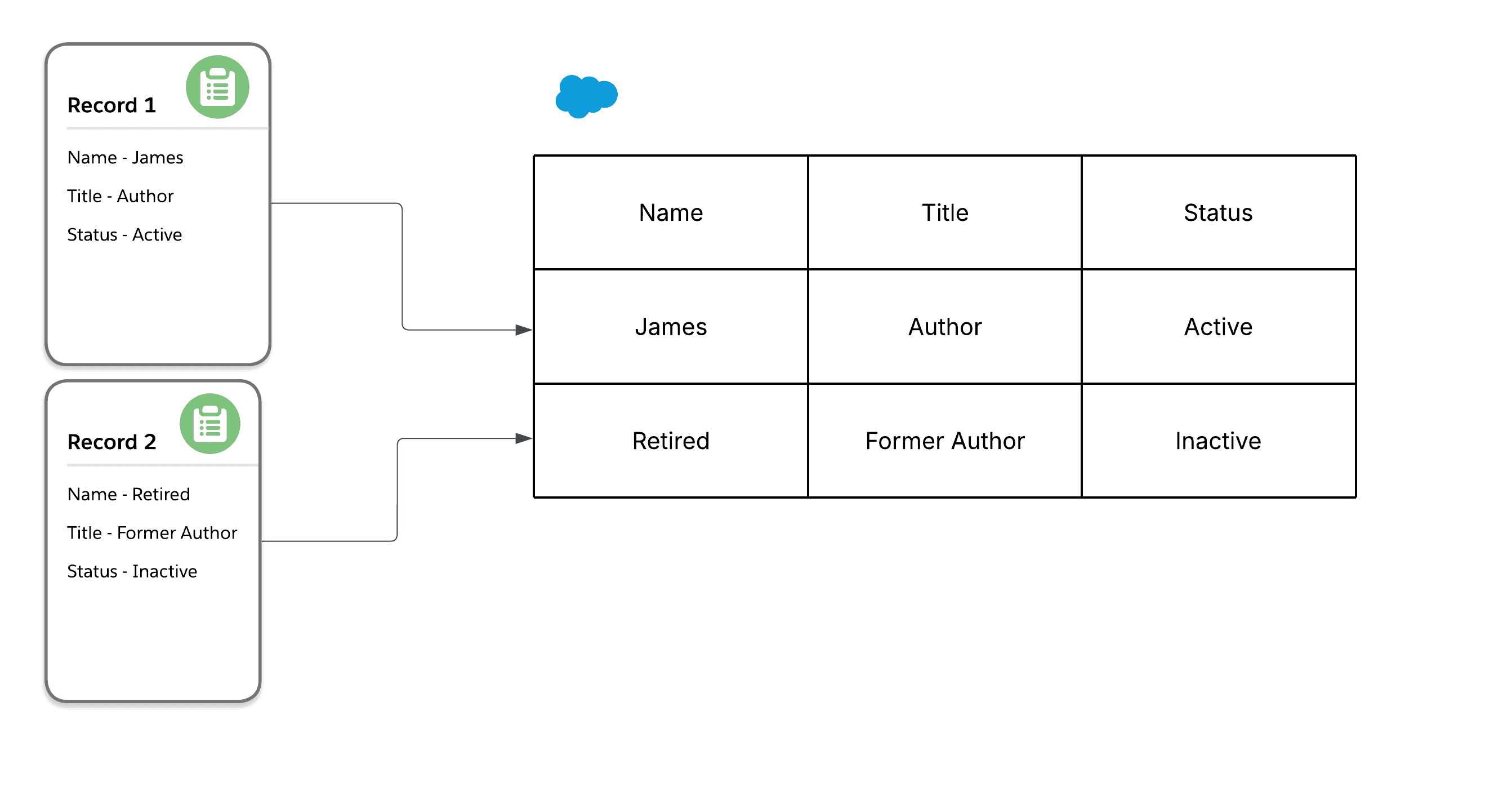
Nice. Tabular format is still — love it or hate it — the primary means by which people expect to be able to view and edit large swathes of data at once. And datatables in Salesforce are an excellent way — when standard list views don’t suffice — to enable the bulk editing experience without requiring tons of page navigation.
But what happens when the data you’re looking to display doesn’t fit into such a neat little box? What happens when you want each cell to represent a distinct record, with a variable number of columns? That’s the question I set out to answer this past week, and I’m happy to say that while there are some hacks along the way, I’ve ultimately been quite surprised by the power of this sort of datatable. I’ll be referring to this as a “record-cell” datatable for the remainder of this article:
Here’s a diagram showing the overall setup:
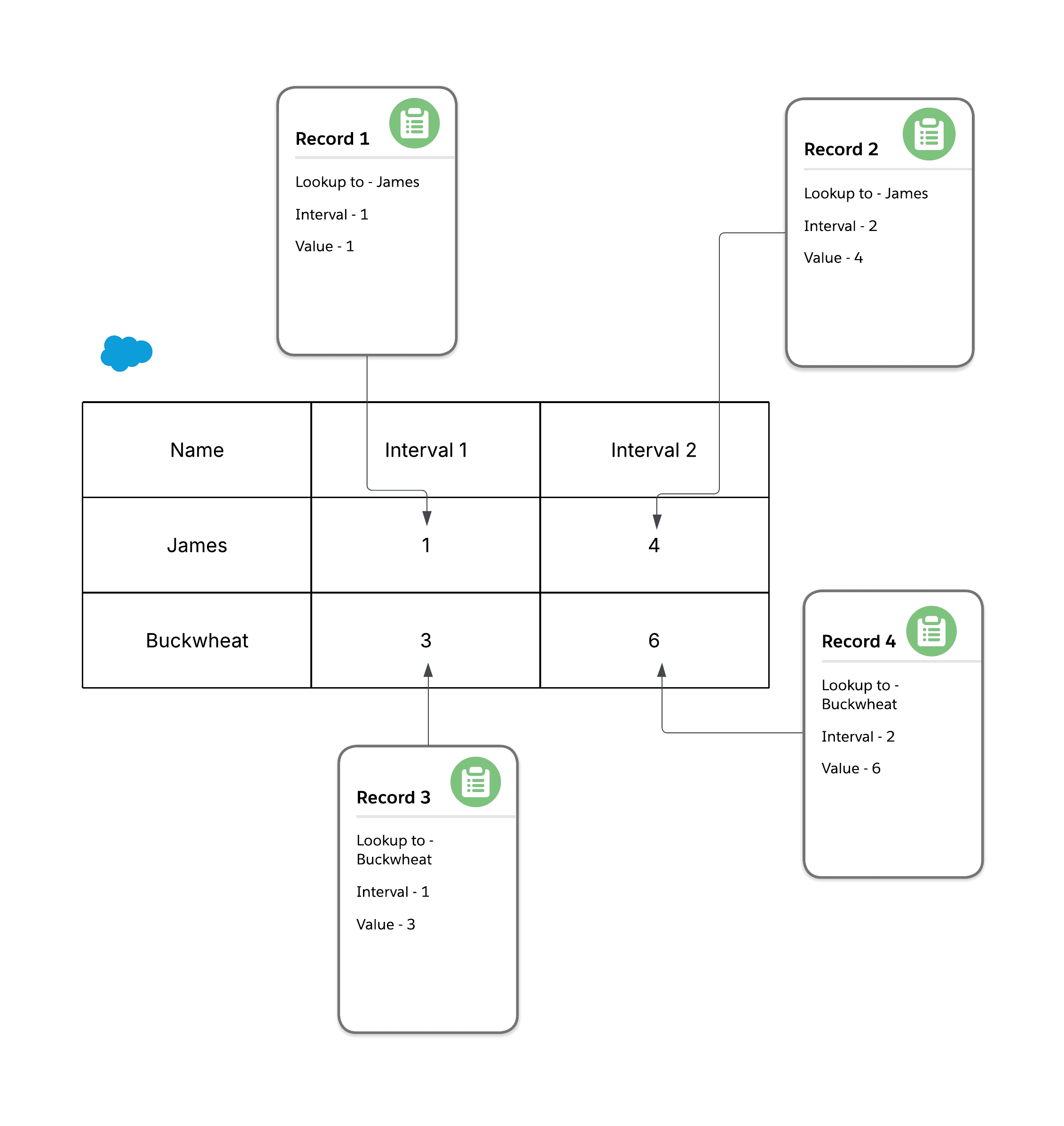
This is quite a different setup! Let’s see what something like this would look like.
Column Definition
I’m going to be using Graph QL to fetch the child records shown in this tree, like such:
import { gql, graphql } from "lightning/graphql";
import { LightningElement, api, wire } from "lwc";
import { getLogger } from "c/logger";

export default class recordCellDatatable extends LightningElement {
  @api
  recordId;

  columns = [];
  data = [];
  errors = { rows: {}, table: {} };
  // we don't always log, but when we do ...
  // you KNOW we're using Nebula Logger!
  logger = getLogger();

  get query() {
    return `
      query {
        uiapi {
          query {
            Person__c (
              where: { Lookup__c: { eq: "${this.recordId}" }}
              orderBy: { Name: { order: ASC } }
            ) {
              edges {
                node {
                  Id
                  User__r {
                    Id
                    Name {
                      value
                    }
                  }
                  Intervals__r(
                    orderBy: {  Name : { order: ASC } }
                  ) {
                    edges {
                      node {
                        Id
                        Name {
                          value
                        }
                        Value__c {
                          value
                        }
                      }
                    }
                  }
                }
              }
            }
          }
        }
      }
    `;
  }

  get resolvedQuery() {
    return gql(this.query);
  }

  @wire(graphql, { query: "$resolvedQuery" })
  gqlQuery({ data, errors }) {
    if (data) {
      const people = data.uiapi.query.People__c.edges;
      this.columns = this._getColumns(people);
      // we'll walk through the column definition first, and then tackle the data declaration
      this.data = this._getData(people);
    } else if (errors) {
      // ellided, but essentially formatting for Nebula Logger
      this._handleWireErrors(errors);
    }
  }
}
I’m not always such a big fan of GraphQL, but a major quality of life adjustment — being able to interpolate values like recordId directly into query strings — means that if you wanted to start using queries strictly on the frontend all the time, it would now be trivial to create a Graph QL component that took care of performing the wire and returned the data/errors. Remember: favor composition over inheritance; anything that helps with that gets the nod from me.
Let’s take a look at that _getColumns() method:
_getColumns = (people) => {
  if (people.length === 0) {
    return [];
  }
  // all people have the same columns, so we can build the column mapping based off of the first person
  const firstPerson = people[0].node;

  const NUMBER_COLUMN_TEMPLATE = {
    initialWidth: 150,
    type: "number",
    cellAttributes: { alignment: "center" },
    editable: true,
    hideDefaultActions: true,
  };

  let columnCounter = 1;
  return [
    {
      initialWidth: 200,
      label: "Person",
      type: "url",
      editable: false,
      displayReadOnlyIcon: true,
      fieldName: `column0Target`,
      typeAttributes: {
        target: "_blank",
        label: { fieldName: `column0Value` },
        tooltip: { fieldName: `column0Value` },
      },
      hideDefaultActions: true,
      wrapText: true,
    },
    ...(firstPerson.Intervals__r?.edges ?? []).map((edge) => {
      const interval = { ...edge.node };
      const columnMapping = {
        ...NUMBER_COLUMN_TEMPLATE,
        ...{
          label: interval.Name.value,
          fieldName: `column${columnCounter}Value`,
          },
        },
      };
      columnCounter++;
      return columnMapping;
    }),
    {
      // any other columns you wanted to define that were "fixed"
      // can then follow the interval declarations
    },
  ];
};
Using the picture above as a reference, we’d end up with 3 columns defined:
| Label | fieldName | Editable | … etc … |
|---|---|---|---|
| Person | column0Target | false | typeAttributes: { …} |
| Interval 1 | column1Value | true | typeAttributes: { …} |
| Interval 2 | column2Value | true | typeAttributes: { …} |
Now, maybe we should quibble on the values for fieldName — my thought with column0Target instead of column0Value is that “target” for a url-type field is more relatable; it implies that the value that you’re getting is either a relative or absolute URL. But you are free to form your own opinion, of course.
Data Definition
Let’s have a look at the _getData() function now:
_getData = (people) => {
  return people.map((edge, index) => {
    const person = { ...edge.node };
    const row = {
      Id: index,
      column0Value: person.User__r.Name.value,
      column0Target: `/${person.User__r.Id}`,
    };
    let additionalColumnCounter = 0;
    return {
      ...row,
      ...(person.Intervals__r?.edges ?? [])
        .map((interval) => {
          const interval = { ...interval.node };
          additionalColumnCounter++;
          const intervalRowValue = {
            [`column${additionalColumnCounter}Value`]:
              interval.Value__c.value ?? 0,
            [`column${additionalColumnCounter}Id`]: interval.Id,
            [`column${additionalColumnCounter}Field`]: "Value__c",
          };
          return interval;
        })
        .reduce((acc, curr) => ({ ...acc, ...curr }), {}),
      ...{
        // any additional "fixed" properties to display afterwards
        // as per the column mapping
      },
    };
  });
};
You might note that there are two additional fields being appended to each row — one for the Id, and one that determines the field to write back to. Let’s take a look at the markup for the datatable itself to see how those fields end up coming into play:
<div class="slds-p-around_medium">
  <lightning-datatable
    columns={columns}
    resize-column-disabled
    data={data}
    errors={errors}
    hide-checkbox-column
    key-field="Id"
    oncellchange={handleUpdate}
    suppress-bottom-bar
    wrap-table-header="all"
    wrap-text-max-lines="3"
  ></lightning-datatable>
</div>
Note that if you’re using wrap-table-header in your own projects, like I am, I've submitted a PR to get this added to sfdx-lwc-jest, as using components referencing that property in Jest tests currently leads to some false positive warnings on the command line.
Let’s check out that handleUpdate function mentioned in the markup…
import { updateRecord } from "lightning/uiRecordApi";
 // ...

async handleUpdate(event) {
  await Promise.all(
    event.detail.draftValues.map(async (draftValue) => {
      const rowId = Number(draftValue.Id);
      // update in-memory values with the draft value updates
      this.data[rowId] = { ...this.data[rowId], ...draftValue };
      await this._performUpdate(draftValue, rowId);
    })
  );

  // this clears the slds-is-edited class from being applied
  // to updated rows
  this.template.querySelector("lightning-datatable").draftValues = [];
}

_performUpdate = async (draftValue, rowId) => {
  const recordInput = { ...draftValue };
  // the original Id is the row index, so we need to remove it from
  // what we send to the uiRecordApi
  delete recordInput.Id;
  const fieldNames = [];
  Object.keys(recordInput).forEach((key) => {
    fieldNames.push(key);
    recordInput.Id = this.data[rowId][key.replace("Value", "Id")];
    recordInput[this.data[rowId][key.replace("Value", "Field")]] = recordInput[key];
    delete recordInput[key];
  });

  try {
    this._validateInput(draftValue);
    await updateRecord({ fields: recordInput });
    this.logger.info(`Record updated with new values successfully:\n${JSON.stringify(recordInput)}`);
    this._clearErrorRow(rowId, fieldNames);
  } catch (error) {
    this.logger.error("Error occurred updating record").setExceptionDetails(error);
    let errorRow = this.errors.rows[rowId];
    // ellided - you can get the gist from LWC utils
    const errorMessages = this._getDatatableErrorMessages(error);
    if (errorRow) {
      errorRow.messages = errorRow.messages.concat(errorMessages);
    } else {
      errorRow = { messages: errorMessages, fieldNames: [] };
    }
    errorRow.fieldNames = errorRow.fieldNames.concat(fieldNames);
    this.errors.rows[rowId] = {
      // ellided, similarly
      title: this._formatDatatableErrorTitle(errorRow.messages),
      fieldNames: [...new Set(errorRow.fieldNames)],
      messages: [...new Set(errorRow.messages)]
    };
  } finally {
     // trigger re-render of errors if necessary
    this.errors = { ...this.errors };
  }
};

_clearErrorRow = (rowId, fieldNames) => {
  const possibleErrorRow = this.errors.rows[rowId];
  if (possibleErrorRow) {
    possibleErrorRow.fieldNames = possibleErrorRow.fieldNames.filter((fieldName) => !fieldNames.includes(fieldName));
    if (possibleErrorRow.fieldNames.length === 0) {
      delete this.errors.rows[rowId];
    } else {
      possibleErrorRow.title = this._formatDatatableErrorTitle(possibleErrorRow.fieldNames);
    }
  }
};
OK so a couple of things to note here:
handleUpdatecan work with both the mechanism being shown here (saving as soon as a cell is edited) and the save button version that is the datatable default whensuppress-bottom-baris not supplied andhandleUpdateis bound toonsaveeither in addition to or in replacement ofoncellchange._performUpdatetakes a JavaScript object that looks like this:
{
  "column1Value": 2,
  "Id": 0
}
And transforms it into the Lightning Data Service (LDS) compliant record expected by updateRecord:
{
  "Value__c": 2,
  "Id": "someCompliantSalesforceId"
}- table / row-level errors: be aware that when using table-level errors, they’ll only display when the bottom bar for the table is showing. Because I’m writing a component that might be interchangeably be used for both cases, I added support for both errors at the row level and errors at the table level. Your mileage might vary.
- if you don’t clear
draftValues, as shown,slds-is-editedclasses will get appended to each cell as changes are made, which highlights them light yellow. Something to consider on this front (which frequently makes people declaredraftValuesas a class property for the datatable) is that you may prefer to persist values that have changed due to human input with that same “edited” highlighting — this would involve additional column mappings at thecellAttributeslevel, and means more denormalized data for each “row”.
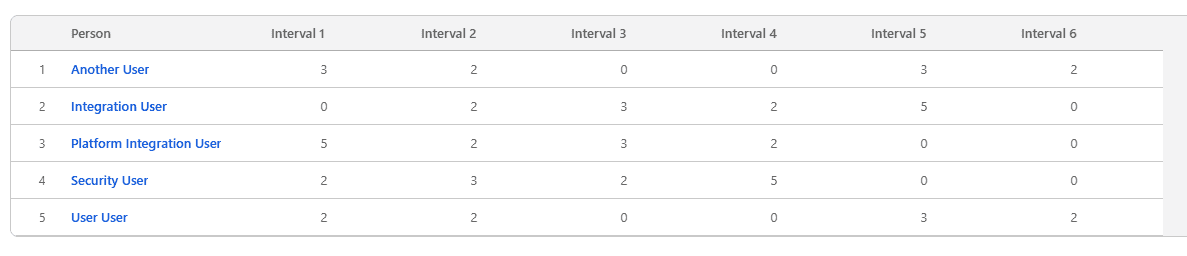
All of this ends up looking like this:
Next Steps: Custom Data Types
If you’re looking to build record-cell datatables, it’s worth saying right now: that’s it, you’re done! You could stop right here and live quite happily. Or you could do some work abstracting out the column mapping piece into custom metadata. I thought about this for quite a bit — flag which key prefixes, for example, should be one-to-many in terms of column definition (although if you, like me, don’t necessarily know upfront how many columns there will end up being, defining a strict order for columns placed after those records is something to think about). But let’s take it a step further and talk about custom datatypes.
Standard Cell Layout
At some point in every developer’s journey on the platform, they’ll inevitably reach some requirement within a table that doesn’t fit into the standard rendering “box”. Custom data types are there to help, but there isn’t a ton of documentation surrounding them and though I’ve contributed to lwc-utils, it had been years since I’d last looked at custom datatypes with any frequency when I started looking into them for this feature. Let’s say Interval__c actually has two fields: Computed_Value__c, and Overridden_Value__c.
Our mapping function for that data updates slightly:
// ellided - the updated GQL query
 [`column${additionalColumnCounter}Value`]:
  interval.Overridden_Value__c.value ?? interval.Computed_Value__c.value ?? 0,
And we’d like to be able to support an “undo” action within each cell.
There are two ways to define custom datatypes in LWC:
- Have a component that extends
LightningDatatablethat defines data types statically OR - Pass a “provider” component into the
customdatatypesslot on the datatable markup:
<div class="slds-p-around_medium">
  <lightning-datatable
    columns={columns}
    resize-column-disabled
    data={data}
    errors={errors}
    hide-checkbox-column
    key-field="Id"
    oncellchange={handleUpdate}
    suppress-bottom-bar
    wrap-table-header="all"
    wrap-text-max-lines="3"
  >
    <c-undo-provider slot="customdatatypes"></c-undo-provider>
  </lightning-datatable>
</div>
Then in your undoProvider folder, you can have an empty HTML template and the following in your .js file:
import { LightningElement, api } from "lwc";

// we'll get to this in a second
import undoNumber from "./undoNumberLocal.html";

export default class IntervalCellProvider extends LightningElement {
  // the slot calls this function, and it
  // HAS to be named getDataTypes
  @api
  getDataTypes() {
    return {
      undoNumber: {
        template: undoNumber,
        typeAttributes: [
          "editable",
          "fieldId",
          "fieldMapping",
          "originalValue",
          "value",
        ],
      },
    };
  }
}
Let’s start by talking about typeAttributes, since it’s a bit of a weird thing; the strings that you’re binding here “magically” end up creating a mapping between the actual properties you pass into your column definition’s typeAttributes and the HTML template(s) you import into your provider. It’s completely unclear why this extra step is necessary, since you already have to define type attributes for each column definition. Even though this is an object, it doesn’t behave like a standard value object with respect to things like lwc:spread (see my note in the markup below). But before we get there…
It’s at this crucial moment that we need to talk about “edit templates.” There is another property, editTemplate, that you can also define and pass in a reference to another (within the same folder) HTML template, but it suffers from … interesting and significant drawbacks (when it comes to building a record-cell datatable, at least), let’s say. According to the docs:
Only Lightning base components with a single input field are supported as the input component in custom edit templates. Components such as lightning-input type=“datetime” that have multiple inputs whose API evaluates to a single input are also supported.
You can also include and reference custom components in this bare HTML template, but you can’t control anything about how the inline edit experience works (in terms of pre-handling things like onchange). If you can live with this limitation, keeping things simple here is really nice. That being said, there are cons:
Take the “undo” functionality I’m discussing: it’s trivial to update your regular template for a custom data type to display the “cleared” value and bubble that back up to the parent:
handleUndo() {
  this._sendUpdateToParent(null);
  this.value = this.originalValue;
}

_sendUpdateToParent(value) {
  const draftValue = { Id: this.fieldId, [this.fieldMapping]: value };
  this.dispatchEvent(
    new CustomEvent("cellchange", { detail: { draftValues: [draftValue] }, bubbles: true, composed: true })
  );
}
Without even seeing the rest of the component (which itself isn’t much), hopefully it’s clear how nice it is that we can hook into the existing oncellchange handler on the datatable to null out a value, and immediately see the Computed_Value__c get used in place of the Overridden_Value__c. Yes, it takes some wonky additional properties out of the typeAttributes object, since we need to know the name of the field in question and (even funnier), not the actual record Id for any given cell but the row number it comes from so that things will flow properly once within the datatable handleUpdate function (which was shown above).
But! Somehow that same change is impossible to express to the edit template. At first I thought that I might be able to simply do some re-assignment in the datatable to this.data in order to force a re-render and “drill” the updated values down to the edit template. But … that simply doesn’t work. And that bothered me. It doesn’t seem like there’s any way to update the magic editedValue property passed to the edit template short of straight up using it.
But now I need to back up a few steps. We’re getting ahead of ourselves. Let me start by showing the IntervalCellProvider directory structure:
// the blank template
<template></template>
And then:
// in undoNumberLocal, we refer to a custom LWC
<template>
  <c-undo-number
    // it feels like we should just be able to curry
    // these values by calling lwc:spread={typeAttributes}
    // but that doesn't work, for some reason. More's the pity.
    editable={typeAttributes.editable}
    field-id={typeAttributes.fieldId}
    field-mapping={typeAttributes.fieldMapping}
    original-value={typeAttributes.originalValue}
    value={value}
  ></c-undo-number>
</template>
And the actual markup for c-undo-number:
<template>
  <lightning-formatted-number value={value}></lightning-formatted-number>

  <template lwc:if={hasChanged}>
    <lightning-button-icon
      alternative-text="Reset to calculated value"
      class="slds-var-m-left_large"
      onclick={handleUndo}
      icon-name="utility:undo"
      variant="bare"
      type="reset"
      size="small"
    ></lightning-button-icon>
  </template>
</template>
As well as the JavaScript controller:
import { LightningElement, api } from "lwc";

export default class UndoNumber extends LightningElement {
  @api editable;
  @api fieldId;
  @api fieldMapping;
  @api originalValue;
  @api value;

  get hasChanged() {
    return Number(this.value) !== Number(this.originalValue) && this.editable;
  }

  handleUndo() {
    this._sendUpdateToParent(null);
    this.value = this.originalValue;
  }

  _sendUpdateToParent(value) {
    const draftValue = { Id: this.fieldId, [this.fieldMapping]: value };
    this.dispatchEvent(
      new CustomEvent("cellchange", {
        detail: { draftValues: [draftValue] },
        bubbles: true,
        composed: true,
      }),
    );
  }
}
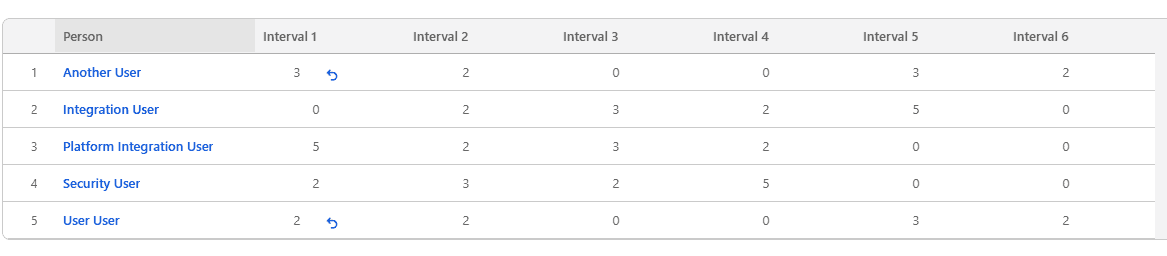
And already that looks pretty good on the page (I’ve added some overridden values to records in the first column to show what the conditionally displayed Undo button looks like):
But in order to introduce the standard edit functionality (using the example straight out of the docs), we would need:
// let's call this undoNumberEditLocal.html
<template>
  <lightning-input
    type="number"
    value={editedValue}
    data-inputable="true"
  ></lightning-input>
</template>
So then we edit the provider accordingly:
import { LightningElement, api } from "lwc";

import undoNumber from "./undoNumberLocal.html";
import undoNumberEdit from "./undoNumberEditLocal.html";

export default class IntervalCellProvider extends LightningElement {
  // the slot calls this function, and it
  // HAS to be named getDataTypes
  @api
  getDataTypes() {
    return {
      undoNumber: {
        template: undoNumber,
        editTemplate: undoNumberEdit,
        standardCellLayout: true,
        typeAttributes: [
          "editable",
          "fieldId",
          "fieldMapping",
          "originalValue",
          "value",
        ],
      },
    };
  }
}
But now we’re at the stuck point I mentioned earlier; the edit template won’t show reset values. You might be tempted to attempt to use a custom LWC in the edit template, like we did for the standard template:
<template>
  <c-undo-number-edit
    editable={typeAttributes.editable}
    field-id={typeAttributes.fieldId}
    field-mapping={typeAttributes.fieldMapping}
    original-value={typeAttributes.originalValue}
    value={editedValue}
    data-inputable="true"
  ></c-undo-number-edit>
</template>
And then the corresponding markup and JS:
<template>
  <lightning-input type="number" value={value}></lightning-input>
</template>
And the controller:
import { LightningElement, api } from "lwc";

export default class UndoNumberEdit extends LightningElement {
  // the provider attempts to inject all of the defined properties
  // into both templates, so even if you don't use some of the properties here,
  // you'll get console warnings if you don't declare them...
  @api editable;
  @api fieldId;
  @api fieldMapping;
  @api originalValue;
  @api value;
}
When this renders, it would appear that victory is at hand — clicking on the edit icon that displays on hover (thanks to our standardCellLayout property being true on the provider), you enter into edit mode. It looks like there’s an issue with the standard onchange handling, but that’s no biggie — we can add a simple onchange handler to the edit template, very similar to the handleUndo function powering the undo button:
handleChange(event) {
  event.preventDefault();
  event.stopImmediatePropagation();

  const draftValue = { Id: this.fieldId, [this.fieldMapping]: event.target.value };
  this.dispatchEvent(
    new CustomEvent("cellchange", { detail: { draftValues: [draftValue] }, bubbles: true, composed: true })
  );
}
And … that works! But something bad happens — after hitting the enter key, or clicking out of the cell, an error message appears. After … a lot of incredibly tedious debugging in aura_proddebug.js, I finally got to the root of the issue:
aura_proddebug.js:11994 Uncaught TypeError: Cannot read properties of undefined (reading 'valid')
at processInlineEditFinish (datatable.js:9634:48)
at LightningDatatable.handleInlineEditFinish (datatable.js:9454:6)
at LightningDatatable.handleInlineEditFinish (datatable.js:12372:31)
at callHook (aura_proddebug.js:11451:19)
at aura_proddebug.js:11211:13
at runWithBoundaryProtection (aura_proddebug.js:11978:13)
at invokeEventListener (aura_proddebug.js:11206:9)
at HTMLBridgeElement.<anonymous> (aura_proddebug.js:10446:13)
at handleEvent (aura_proddebug.js:1578:49)
at eval (eval at <anonymous> (aura_proddebug.js:1623:32), <anonymous>:1:22)
That’s … starting to ring a bell, actually. There’s a section in the docs that alludes to this condition; they just don’t make it clear that it’s required:
To further validate user input for the custom type on the client, use a child component in the custom edit template. Set
data-inputable="true"on the input component and include thevalidity()getter in its JS to expose the validity API for the input component.
Let’s try that with the simplest possible solution:
import { LightningElement, api } from "lwc";

export default class UndoNumberEdit extends LightningElement {
  @api editable;
  @api fieldId;
  @api fieldMapping;
  @api originalValue;
  @api value;

  @api
  get validity() {
    return true;
  }

  handleChange(event) {
    event.preventDefault();
    event.stopImmediatePropagation();

    const draftValue = {
      Id: this.fieldId,
      [this.fieldMapping]: event.target.value,
    };
    this.dispatchEvent(
      new CustomEvent("cellchange", {
        detail: { draftValues: [draftValue] },
        bubbles: true,
        composed: true,
      }),
    );
  }
}
It ends up being a bit more complicated than this, in reality, because handleChange fires every time the cell is edited; you probably just want to:
import { LightningElement, api } from "lwc";

export default class UndoNumberEdit extends LightningElement {
  @api editable;
  @api fieldId;
  @api fieldMapping;
  @api originalValue;
  @api value;

  @api
  get validity() {
    return true;
  }

  handleChange(event) {
    event.preventDefault();
    event.stopImmediatePropagation();
  }

  handleBlur(event) {
    event.preventDefault();
    event.stopImmediatePropagation();

    // don't update for blanks, or when the value hasn't actually changed
    if (
      event.target.value === "" ||
      Number(event.target.value) === this.value
    ) {
      return;
    }

    const draftValue = {
      Id: this.fieldId,
      [this.fieldMapping]: event.target.value,
    };
    this.dispatchEvent(
      new CustomEvent("cellchange", {
        detail: { draftValues: [draftValue] },
        bubbles: true,
        composed: true,
      }),
    );
  }
}
But now we run up against some annoying limitation of the standard cell layout — hitting “Enter” doesn’t actually close the open edit cell; only clicking away does. Because I just spent an inordinate amount of time reading through the source code of lightning/primitiveDatatableIEditPanel, I know how to fix this issue:
// within undoNumberEdit.html
<template>
  <lightning-input
    type="number"
    value={value}
    onchange={handleChange}
    onblur={handleBlur}
    onkeydown={handleKeyDown}
    data-inputable="true"
  ></lightning-input>
</template>
Note that I’m using keydown here; I would have preferred keyup but because the component is embedded within lightning/primitiveDatatableCell, keyup ends up getting pre-empted by the host listener, which is … fun. In the JavaScript controller:
// within undoNumberEdit.js
handleKeyDown(event) {
  if (event?.key === "Enter") {
    this.dispatchEvent(
      // lightning/primitiveDatatableIEditPanel listens for this event
      // this doesn't feel ... brittle ... at all!
      new CustomEvent("ieditfinished", {
        bubbles: true,
        composed: true,
        detail: {
          rowKeyValue: this.fieldId,
          colKeyValue: this._getColumnKeyValue(),
          reason: "submit-action"
        }
      })
    );
  }
}

_getColumnKeyValue() {
  // "undoNumber" here is the "base" cell name, not the "edit" version
  // the + 1 here is to account for the "Person" column being first
  return `${this.fieldMapping}-undoNumber-${Number(this.fieldMapping.replace("column", "").replace("Value", "")) + 1}`;
}
Shockingly, with some minor updates to handleBlur to prevent duplicate updates, this all “just works”:
handleBlur(event) {
  event.preventDefault();
  event.stopImmediatePropagation();

  if (!event.target || event.target.value === "" || Number(event.target.value) === this.value) {
    return;
  }

  // you saw this part already, so I've omitted it
  this._updateParent(event.target.value);
}
If you can live with the above, you can keep using standard cell layout — which I’d highly recommend doing. It’s way less code than having to manage styles yourself; it allows you to continue to use fun things within your datatable like cellAttributes to pass styling onto children, and generally life is way simpler.
But this is the Joys of Apex, so let’s assume for some reason that standard cell layouts don’t work for you. One possible reason to customize your layout? Accessibility and navigation, if you can believe it. The standard cell layout’s tab navigation-based functionality, for example, defaults to selecting things like visible buttons on each component; if you want to opt-into special treatment, you can add the following attributes to your template markup within your data provider:
// within undoNumberLocal.html
<template>
  <c-undo-number
    editable={typeAttributes.editable}
    field-id={typeAttributes.fieldId}
    field-mapping={typeAttributes.fieldMapping}
    original-value={typeAttributes.originalValue}
    value={value}
    // new!
    internal-tab-index={internalTabIndex}
    data-navigation="enable"
  ></c-undo-number>
</template>
You then can drill these props down to the actual template:
// within undoNumber.html
<template>
  <lightning-formatted-number
    data-navigation="enable"
    tabindex={internalTabIndex}
    value={value}
  ></lightning-formatted-number>

  <template lwc:if={hasChanged}>
    <lightning-button-icon
      data-navigation="enable"
      tabindex={internalTabIndex}
      alternative-text="Reset to calculated value"
      class="slds-var-m-left_large"
      onclick={handleUndo}
      icon-name="utility:undo"
      variant="bare"
      type="reset"
      size="small"
    ></lightning-button-icon>
  </template>
</template>
Now when you tab, navigation stays within the table and the numbers can be iterated on forwards and in reverse with tab, which is great. You might see some warnings in your console about internalTabIndex being passed to c-undo-number (or the name of your particular component), which seems like a platform bug that I’ll report — whatever you do, don’t add @api internalTabIndex to your component upon seeing a console warning like that, as doing so will override the internal property within LightningElement and break navigation. Ask me how I know!
That being said… note that we don’t do the same thing within the “edit” versions of the template; it has no effect, sadly, which means that you can’t focus the pencil icon for editing that otherwise only displays on hover. You can call the public methods focus() or openInlineEdit() on the datatable for non-custom types, but for custom edit templates those calls (seemingly) have no effect. Which brings us to…
Customizing Cell Layouts
Look, if you’ve made it this far, good on you. Things get weird as soon as you stop supplying the standardCellLayout: true value for any custom type in your provider. You’re now on your own, which means you’re free to do things that you might have wanted to do anyway, like only having a single component for non-edit/editing. It’s a lot easier to manage complexity within a single component, albeit at the cost of having to do things like:
<template>
  <section
    onmouseenter={handleMouseMovement}
    onmouseleave={handleMouseMovement}
    onkeyup={handleNavigation}
  >
  <...>
  </section>
</template>

handleMouseMovement(event) {
  if (this.isEditMode || !this.editable) {
    event.preventDefault();
    return;
  }
  // this is straight out of lwc-utils, by the way
  this.showEditIcon = event.type === "mouseenter";
}
Look, nobody likes re-inventing the wheel, and in particular having to recreate things that you get for free with the standard cell layout — like the edit icon displaying when hovering over an editable cell. There are many considerations you should be aware of when doing this:
- cell-specific styling has to be re-implemented. You have to manage classes like
slds-is-editedif you want to maintain that “draft value” look to edited cells. Alignment will be inconsistent — if you were passing{ alignment: "center" }, or any other validalignmentvalue as part of thecellAttributespreviously, be prepared for that to do absolutely nothing! Row-level errors won’t work at the<td>element level, and depending on the elements within your custom data type, the red text color and borders may display inconsistently out of the box. - when using markup like
lightning-inputwithin edit mode, be prepared to handle things like weird border outlines, potentially clashing background colors, needing to explicitly handle keyboard events like tab and enter for navigation and exiting edit mode, re-implementing validity handlers, etc… renderedCallback()weirdness: I’ve observed multiple re-renderings occurring when implementing things like “reset to prior value”, and it’s not always clear why multiple re-renderings are occurring in instances like this. Be prepared to guard against things like re-renderings trying to set values to null that should never be null.
I don’t say this to dissuade you, or anybody, from going down this path. Sometimes it’s simply necessary! I say all of this to prepare you. Going fully custom with your custom data types enables you to do things that seemingly aren’t supported out of the box, for whatever reason. Things like:
- displaying the edit icon when tabbing through elements
- entering edit mode on a newly focused cell (the out of the box APIs allow you to focus or enter edit mode on the first editable cell, but — and I’d love to be wrong here, please let me know if I’ve simply missed something — detecting transitional keyboard events from the currently focused cell to a newly focused cell doesn’t seem possible)
- a whole host of nuanced (OK, let’s call them opinionated) styling options
With great power comes great responsibility, and in particular hitting benchmarks like a11y accessibility is something you should be hyper-vigilant about if you’re going down this path. I won’t belabor the point further.
Wrapping Up
So what did I learn? I’m thrilled that record-cell datatables — or, really, even just datatables that support cell-specific actions — aren’t all that hard to put together. Deciding between standard cell layouts — and trying to handle the edge-cases that custom data types introduce to that particular paradigm — ended up being far more complicated than I originally thought or allocated time for when doing this deep dive. I ended up going fully custom for this functionality because using undocumented custom events for handling editing might work now, but that functionality comes without any guarantee that it will continue to work in the future, and I’d hate to be in the position of racing to figure out something that could easily change without any release note or notification.
I think a lot of navigation-based pain could be avoided within standard cell layouts if the getActionableElements() function (which currently resides within lightning/primitiveDatatableCell) was exposed as a public API on datatables as a whole; that, or the equivalent methods like setFocusToActionableElement() were exposed in a way that meant navigation (and reverse navigation with Shift + Tab) could be handled uniformly for both standard and custom elements in a datatable. That’s something I’ll have to look into contributing via open source, time-permitting.
As always, thanks to my supporters on Patreon like Arc and Henry — it means a lot to me that people continue to value deep technical content on this platform, and I’m very happy to have had the chance to bring this article together to explore a topic that hasn’t seen a lot of prior writing (beyond articles that simply copy the examples in the docs and present them as something new). Thanks for reading the Joys of Apex — until next time!